
Screenshots
Description
Phone to Tablet Music Remote 5.0 Apk Full Paid is the latest Tools application for Android devices
Get the newest Phone to Tablet Music Remote Apk Full Paid for Android via a direct download link at GameMod.dev
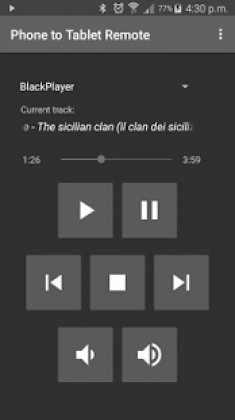
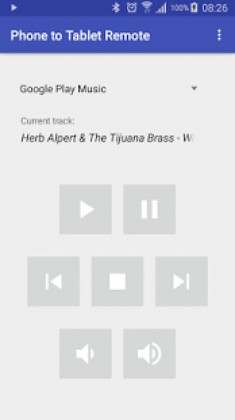
Phone to Tablet Music Remote is a handy Android utility developed by FK33 that lets you turn your smartphone into a full-featured media controller for your tablet. Launch your preferred music player on your tablet and easily play, pause, jump between tracks, scrub, or tweak the volume directly from your phone screen. It links up smoothly via Wi-Fi or Bluetooth, allowing you to browse songs and import entire playlists on the fly.
With this release, media controls are readily available right from your lock screen and notification drawer.
Compatible Music Applications:
Works seamlessly with popular apps like AIMP, Amazon Music, Apollo, Apple Music, BlackPlayer, Deezer, Default Music Player, doubleTwist, Eleven, Equalizer Plus, Google Play Music, HTC Music, jetAudio, Just, Miui, Music Player, Music Player for Android, Sony Music, N7 Player, Napster, Neutron, Noozy, Pandora, Phonograph, Pi, Pixel, PlayerPro, Poweramp, Pulsar, Rocket Player, Samsung Music, Shuttle, SoundCloud, Spotify, Stellio, VLC, Winamp, as well as YouTube (please check the details below).
If your media player isn't shown in the list, simply type in its package name to start controlling it.
Setup Guide:
You can connect your devices using three distinct wireless modes.
1. Wi-Fi Network (Home LAN):
Choose "Wifi Network" upon launching the app. On your playback unit, tap the "Run Server" button to display an IP address alongside a port number. On your remote phone, hit "Run Remote", input the displayed server IP and port, and tap "Connect". Once linked, the playback controls will instantly appear.
2. Bluetooth:
Pair both gadgets through your standard Bluetooth settings first. Open the app and pick the Bluetooth option. From the phone acting as the controller, find and tap your target player device in the list, then select "This Device is the Remote". The playback interface will display after a brief moment.
3. Wi-Fi Direct:
Select Wi-Fi Direct when launching the app. Tap "Scan for Devices" at the same time on both gadgets. After the scan finishes, choose your playback device from the remote's screen and tap "This Device is the Remote". The controls will appear within a few seconds, though connection times may vary slightly.
To change your preferred connection mode, head into the in-app settings via the menu and check under "Other options". You can toggle Wi-Fi and Wi-Fi Direct on or off; turning off both will switch the app to Bluetooth mode automatically.
After connecting, pick your target music application from the drop-down menu to manage playback controls. You may need to have the music player already active on your host device.
Managing Playlists:
Tap "Find playlists" in the remote device's menu to automatically pull every playlist detected on your host device. Pick your desired playlist to display the full song lineup on your controller screen. While all lists can be synced, Phone to Tablet Remote currently supports playlist playback through four specific apps: Poweramp, Google Play Music, Rocket Player, or the default Android internal player.
YouTube Playback:
While managing YouTube, skipping backward or forward is only functional within active playlists. Additionally, toggling play or pause works only after video playback has already begun.
Adding Custom Apps:
If your preferred audio player is missing from the list, scroll down and pick "Custom 1". Next, access Phone to Tablet Remote on the playback device, tap the top-right menu, and open "Set custom app packages". Input your player app's package name under Custom app 1 and hit OK to enable controls.
You can quickly identify any application's unique package ID using a tool such as Package Name Viewer.
Exiting the App:
Tapping the back button while paired merely minimizes the interface rather than closing it. To shut down the app completely, tap "Disconnect" from the options menu before pressing back.
Phone to Tablet Music Remote Full Apk
Phone to Tablet Music Remote Apk Full
What's New: Added an option to restart the Wi-Fi server following a disconnection; resolved minor bugs.
How to install
- Download the APK file above to your phone.
- Allow “Install unknown apps” when prompted.
- Open the downloaded APK and tap Install.
- If the package includes OBB/XAPK data, follow the bundled instructions.
MOD APKs are modified builds, so Play Protect may show a warning. Install only if you trust the file; use at your own risk.