
Screenshots
Description
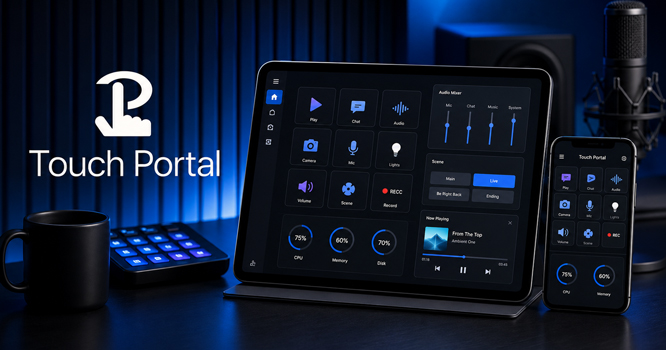
When you're recording, finding the right command can mean leaving your active window or hunting through an OBS menu at exactly the wrong moment. Touch Portal Pro Mod APK moves those frequently used controls onto your Android phone or tablet, placing them beside your keyboard. The mobile screen shows buttons and sliders arranged for the task at hand rather than mirroring your computer display. It's a customizable macro deck, not a remote desktop.
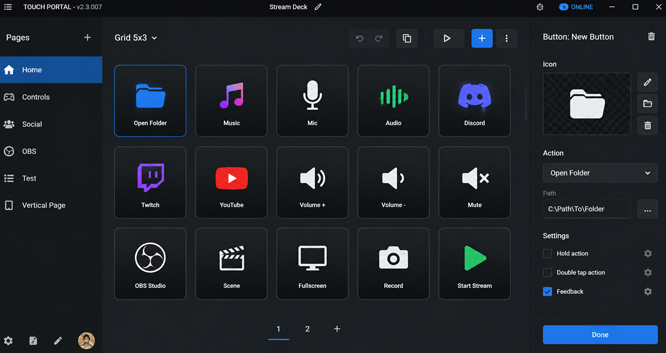
Your phone is only the visible part of the setup. Pages are built in the Touch Portal desktop program, where every control is assigned an action. The Android client displays the finished layout and sends each tap back to your computer. If the desktop program is closed, the controls have nowhere to send their commands. The APK cannot work as a standalone computer remote.
One button, several steps
A useful macro is built around an interruption that happens often. Switching an OBS broadcast to a break scene is a good example. The scene and microphone often need to change almost together, and forgetting one of them can expose the wrong picture or audio. Both commands can be attached to the same button and run in a chosen order.
Some programs need a moment to respond before the next action arrives. Touch Portal can insert a timer between steps, but the delay should match your actual routine. A command sent too early may be missed, while a long pause leaves you wondering whether the button responded.
Programs without a dedicated Touch Portal integration can often be controlled through ordinary keyboard shortcuts. This works well for many desktop tasks, but the shortcut goes to whichever window currently has focus. A key combination meant for one program may do nothing, or trigger a different action, when another window is active. If you later change the program's keyboard bindings, you'll also need to update the Touch Portal page to match.
A button can look correct and still display the wrong state. After sending a mute command, for example, an on/off control may simply remember its last press rather than confirming that the microphone actually changed. Accurate feedback depends on the target program or connector reporting its current status.
Volume sliders work in a similar way. A smart connector receives changes from the computer, so adjusting the system volume elsewhere can also update the slider on your phone. A one-way connector only sends commands, and its displayed position may fall out of date if the volume is changed outside Touch Portal.
A phone screen fills up quickly
The free base uses a 4-by-2 grid and offers two usable pages. Official Pro access unlocks more pages and custom grids holding up to 110 controls. That figure is a capacity limit, not a sensible layout for every device.
A dense grid may look impressive in the desktop editor but become awkward on a phone. Labels shrink, neighboring controls sit closer together, and there are no physical dividers to guide your finger. Commands you need in a hurry should stay large enough to identify and tap without searching through a wall of icons.
Separating live controls from setup controls usually produces a more dependable layout. Buttons used during recording can stay on the first page, while actions for opening programs, preparing scenes, or changing less frequent settings can live elsewhere. A command such as Stop Recording also deserves space away from regular page navigation, where an accidental press is less likely.
Tablets have room for denser arrangements, while an older phone suits a short group of frequent actions. Packing every available command onto one screen doesn't remove work; it simply swaps menu searching on the computer for icon searching on the phone.
Pages shared by other users need a closer look before you rely on them. A layout may refer to program locations, images, audio files, stored values, or plugins that exist only on its creator's computer. The buttons can appear normal even when their underlying actions are incomplete.
Plugin support belongs to the official Pro feature set, but third-party plugins are developed outside the Touch Portal team, so their compatibility and setup depend on each individual project. Importing a page that relies on one doesn't automatically supply the required plugin or its settings.
The Android app is one link in the chain
Every tap travels from the mobile app to the Touch Portal desktop service and then to the program being controlled. Communication normally runs over your local network, and Android and Windows can also connect via USB.
The mobile and desktop releases must stay compatible. This matters especially for a separately downloaded APK, since a newer desktop application may not communicate with an older Android release. When major versions don't match, the phone may display its pages but fail to establish a usable connection.
OBS connects through a separate WebSocket link. Scene switching, recording controls, source visibility, and audio commands all rely on that connection. If the WebSocket server is turned off, or the authentication and port settings don't match, the OBS buttons can stay unresponsive even while your phone is still linked to the Touch Portal desktop app.
Official desktop support covers Windows and macOS, with Linux currently in open beta. The Android support policy assumes the device runs its original operating system with Google Play services. Rooted phones, custom ROMs, Chromebooks, and Android emulators fall outside that policy. The app may open on some of these setups, but official support doesn't guarantee a stable connection or correct licensing behavior there.
The standard setup uses one primary mobile device. Connecting several phones or tablets at the same time requires a separate Multiple Devices upgrade, so the official meaning of Pro does not cover every optional Touch Portal purchase.
Dlandroid describes the supplied modification as "Pro / Paid Features Unlocked." It doesn't list each changed component separately. As a result, the description doesn't confirm the Multiple Devices upgrade, optional graphics add-ons, or compatibility with the latest desktop software.
How to install
- Download the APK file above to your phone.
- Allow “Install unknown apps” when prompted.
- Open the downloaded APK and tap Install.
- If the package includes OBB/XAPK data, follow the bundled instructions.
MOD APKs are modified builds, so Play Protect may show a warning. Install only if you trust the file; use at your own risk.